Transaction Report (0.9.9 Hotfix and Later)
Use the Transaction Report to see what transactions have occurred by product for a given time period, including the opening inventory, all the ins, outs, and adjustments, and the closing inventory for a particular location.
Table of Contents
- How to run the report
- Transaction detail modal
- Differences between online and downloaded report
- Detailed field descriptions
- Differences field and why discrepancies happen
How to Run the Report
To access this report, go to Reporting>Transaction Report

Under Report Parameters:
Mandatory
- Select the facility that you want to see data for
- Select the time period you want to view transactions for
Optional Filters
- See transactions for products within a specific Category
- By default, this is set to your root category with "Include all subcategories" selected, which delivers all products in the system. To filter, you can change the category, and it will automatically include products in the category you selected and products in subcategories of the category you selected. To include only products in the specific category you selected, uncheck "Include all products in all subcategories."
- See transactions for products in specific Formulary or Catalog
- See transactions for products with a specific Tag
- See transactions for specific products. Look for products using product codes or product names
- Toggle to exclude products with no activity during the reporting period. By default, the report includes all products that were in stock on the opening date or closing date or had transactions. To see only products that had transactions, uncheck "Include products with no activity within reporting period"
- Toggle to include internal transfers. By default, the report excludes transactions that are part of an internal transfer, meaning a movement of stock within the warehouse (putaway, stock transfer, bin replenishment). If you would like to see internal transfers, check "include internal transfers." These will appear in the report as a Transfer Out with a matching Transfer In so the thq quantity on hand change equals zero
- Toggle to include data quality columns. This option is only available for the downloaded report. By default, the report shows only opening, transaction data, and closing so that opening + each transaction column = closing. If you check "Include data quality columns," after the closing column you will see additional columns that give information about possible data issues
Click on Run Report when ready.
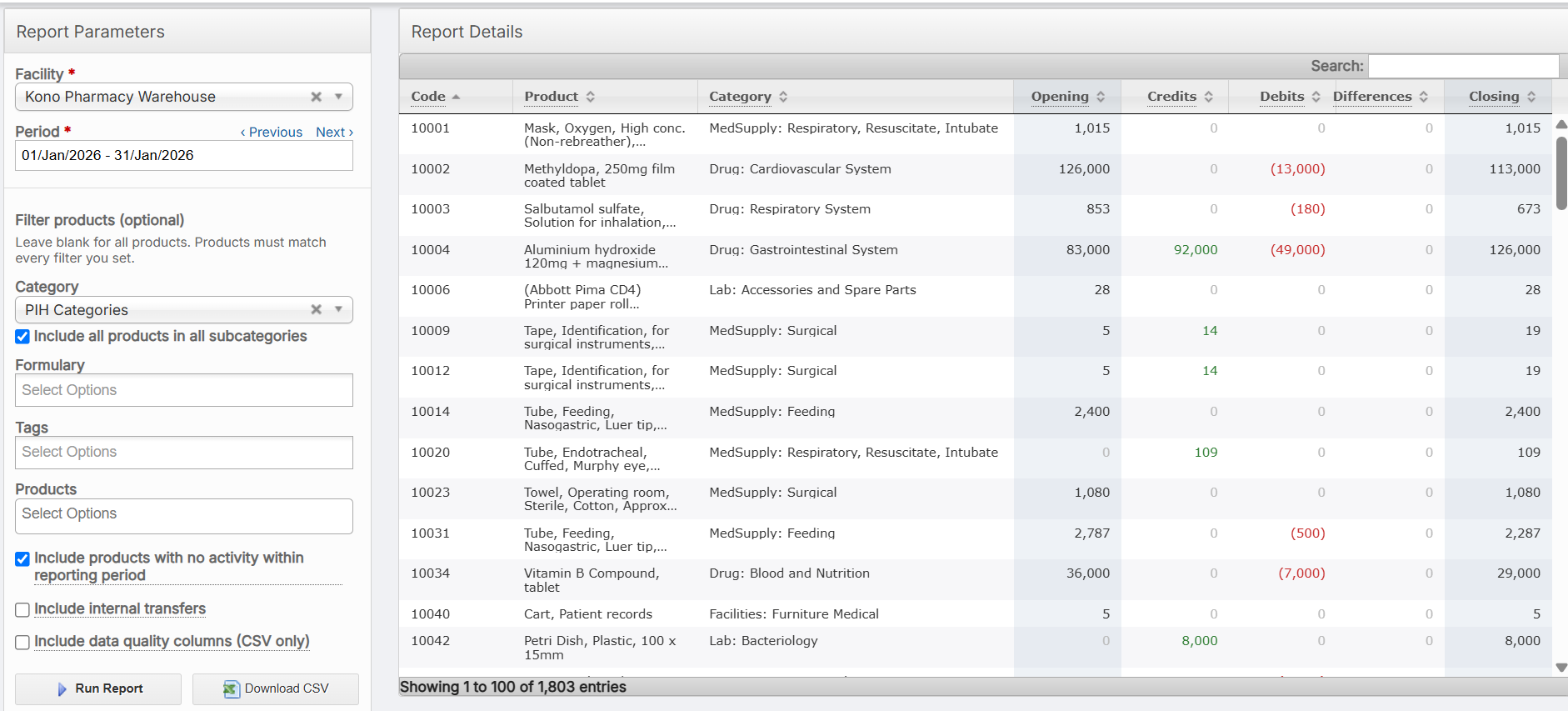
This will load the report in HTML. To download this report, click the Download Data button on the report parameters box. Make sure you don’t click download until after you submit your parameters and see results. The report will download in CSV.
Transaction Detail Modal
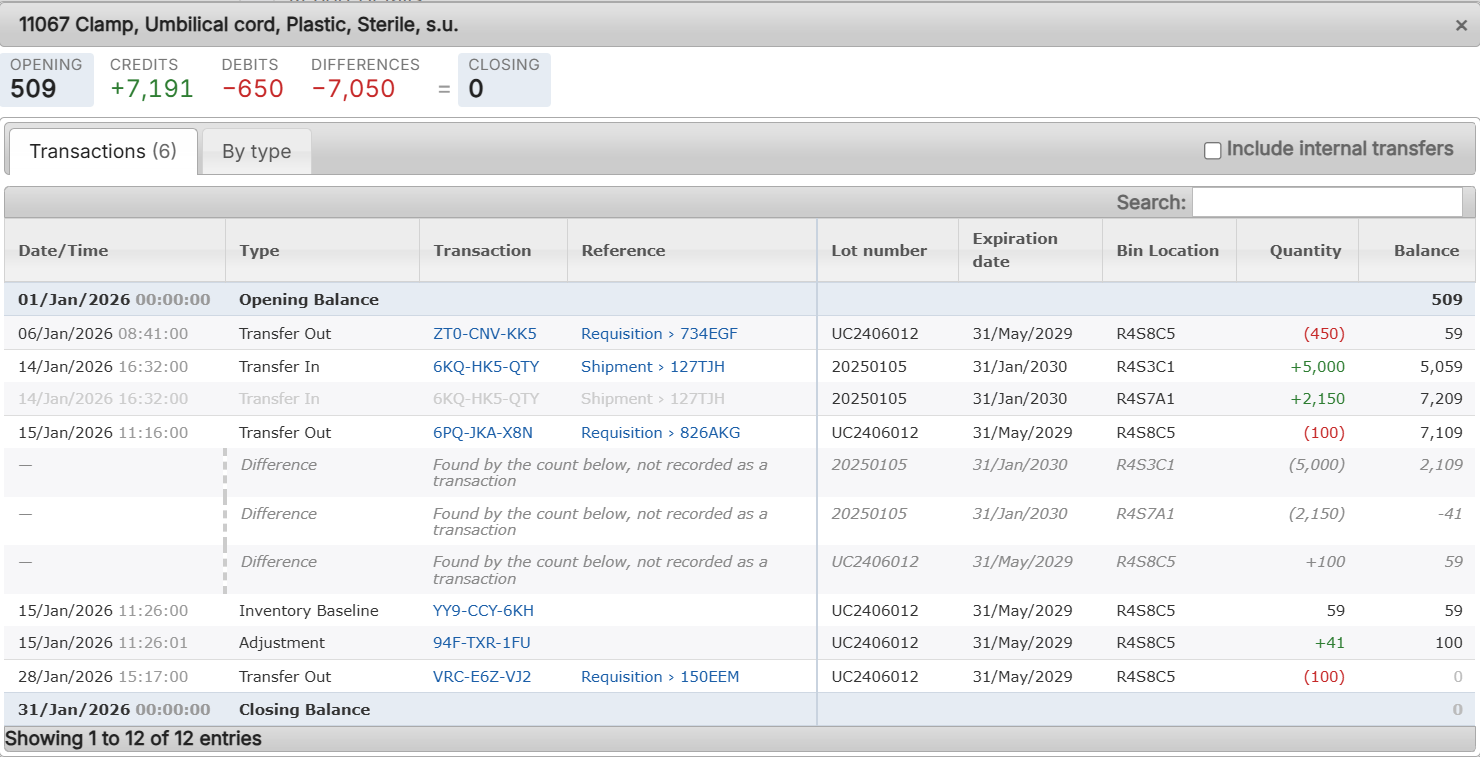
In the online report, clicking on a product will bring up a modal that shows a detailed history of transactions during the time period, similar to the stock history. This allows the user to do a detailed investigation of any product from within the report page.
By default , the modal shows transactions sorted by date, like in stock history. Internal transfers are not shown but can be added by clicking the toggle at the top right.
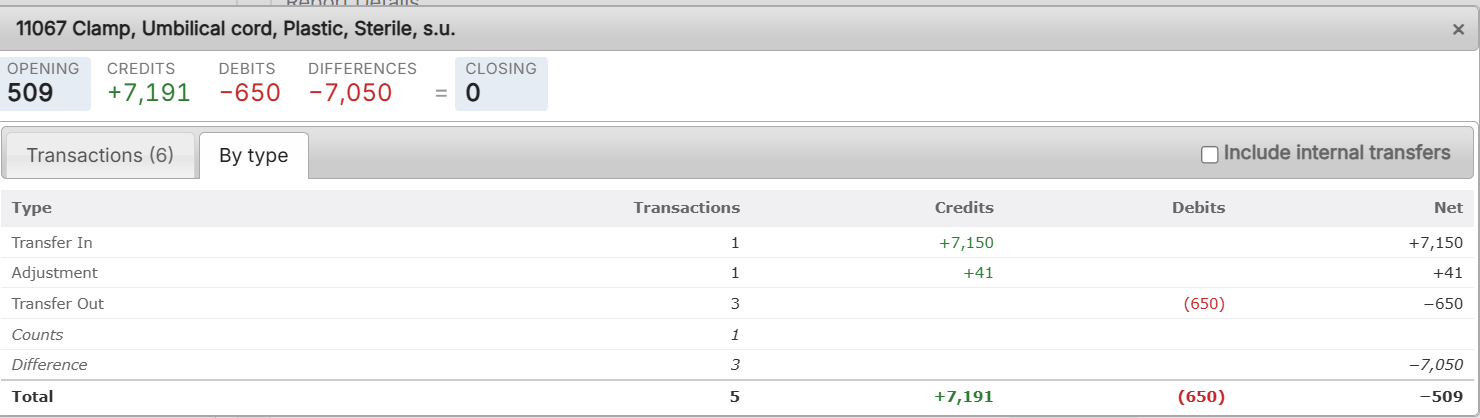
Clicking on the "by type" tab will show the transactions broken out by type:
Differences Between Online and Downloaded Report
Please note that when viewing the report online, you see a summary view that includes much less detail than the CSV. The online report shows transactions summarized as credits (quantity increase) or debits (quantity decrease). The CSV version shows the detailed transaction type associated with the credit or debit.
Field Mapping between the online and downloaded report:
The Credits field online includes the following transaction types:
- Transferred In
- Positive Inventory Adjustments
The Debits field online includes the following transaction types:
- Transferred Out
- Marked as Consumed
- Marked as Expired
- Marked as Damaged
- Negative Inventory Adjustments
Opening, Closing, and Differences are the same in both versions of the report (see detailed field descriptions below).
Detailed Field Description
See below explanations of each column in this report:
Code: the product code
Name: The product name
Product Family: The Family the product belongs to
Display Name: When running the report on a locale different from English, the local display name will display here.
Category: The product category
Formulary: All formularies or catalogs associated with this product
Tag: All tags associated with this product
Unit Cost: See the unit cost of the product
Opening: The Quantity On Hand on the start date indicated in the report parameters
Transferred In: The quantity of the product that came into the warehouse during this time period. Recorded through receipts. Expressed as a positive number.
- If you have checked "include internal transfers," you will also see the quantity of that product transferred within the warehouse under transferred in (and transferred out)
Transferred Out: The quantity of the product that went out of the warehouse during this time period. Recorded through Outbound movements or returns. Expressed as a negative number.
- If you have checked "include internal transfers," you will also see the quantity of that product transferred within the warehouse under transferred out (and transferred in)
Marked as Consumed: The quantity marked as consumed without a transfer out (can be done on the stock card if this feature is turned on in the location). Expressed as a negative number.
Marked as Expired: The quantity of the product that was removed from inventory due to expiry during this time period (this does not count expired items that were not removed from inventory). Expressed as a negative number.
Marked as Damaged: The quantity of the product that was removed from inventory due to damage during this time period (this does not count damaged items that were not removed from inventory). Expressed as a negative number.
Inventory Adjustment: This shows the amount added to or subtracted from the stock through an inventory adjustment. Unlike the other transaction types adjustments can be credits (expressed as a positive number) or debits (expressed as a negative number)
- For example, if product A has two inventory adjustments: one of +1000 and another of -200, the total inventory adjustments for this time period will be displayed as +800.
Difference from Backdata (called "Difference" in online version): In theory, the closing balance should always be equal to Opening Balance +Transferred In - Transferred Out - Marked as Consumed - Marked as Expired - Marked as Damaged + Inventory Adjustments. However, there are certain situations where a stock count performed during the time period in combination with a backdated transaction can result in the closing balance not being a direct sum of the transactions in the report. See the below section on differences for a detailed description on how this happens and what to do about it.
Closing: The Quantity On Hand on the end date indicated in the report parameters. Unless there was a difference from back data during the time period, the closing balance should be equal to Opening Balance +Transferred In - Transferred Out - Marked as Consumed - Marked as Expired - Marked as Damaged + Inventory Adjustments. Because the sign of each transaction type is already built in the the CSV, you can sum all of the columns to the left of Closing Balance and they will equal the Closing Balance.
Data Accuracy or data check columns: These columns are optional additions to the report that are not part of the opening +credits- debits = closing equation. They attempt to give context on differences or flag potential discrepancies.
Data Check: Quantity Backdated: Quantity that was entered through backdated transactions. This is always expressed as a positive number regardless of whether the transaction was a credit or a debit. Backdated transactions are generally a sign of a process issue preventing accurate real time data entry. They can also result in the discrepancies recorded in the difference from backdata column of the report.
Data Check: Quantity Backdated after Period End: This is a subset of the quantity backdated column showing specifically quantities that were entered on a transaction that was completed after the period indicated in the report, but backdated to the period of the report. Always expressed as a positive number.
Data Check: Debit transaction entered with wrong sign: There is a deprecated transaction type in OpenBoxes called "adjustment - debit" that may be available in your instance depending on your version and configuration. If entered correctly, adjustment - debit transactions get rolled up into adjustments within the report. However, if a user enters a negative quantity into an "adjustment - debit" transaction, it will reverse the negative and result in a positive transaction. If this has happened, it will be flagged in this column and will need to be corrected by an administrator.
Data Check: Expired Stock at Closing: The closing quantity in the report shows all quantity on hand, including stock the was expired at the time but had not yet been removed from inventory. This field shows the quantity on hand at the closing date that was already expired but had not yet been removed from stock. This can provide important context in locations where expired items are not removed from inventory immediately after they expire.
"Differences" field and why inventory discrepancies happen
If you are seeing some entries in the "difference" field in your report, you may be wondering why that is happening and if you should be concerned. There is one primary reason why these differences happen: users create or update a transaction after an inventory baseline has taken place, and they set the transaction date for before the inventory baseline took place.
What is an inventory baseline: An inventory baseline is a snapshot or "baseline" of your inventory that is taken the moment you start an inventory count. If the user finds a discrepancy during their inventory count, that is then recorded against the baseline:
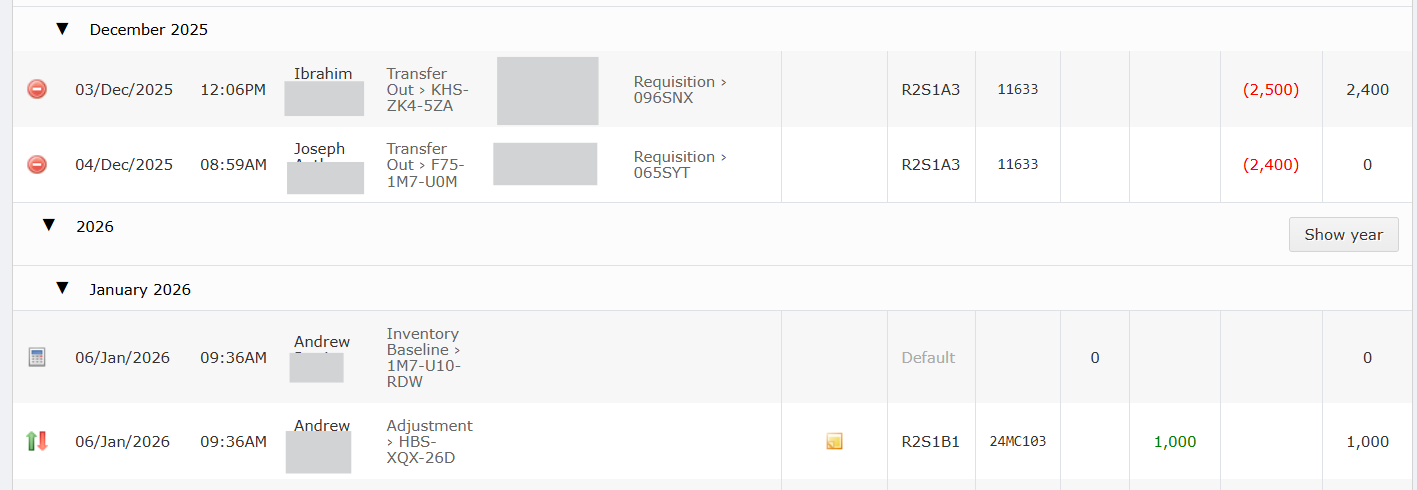
In the case above, Andrew started a count on Jan 6. At that moment, the inventory in OpenBoxes was zero (and had been since the transfer out on 4 Dec). He counted, and found 1000, resulting in an adjustment of +1000 and a final inventory of 1000.
Now imagine, after entering the adjustment of +1000 to correct the inventory, Andrew does a reconciliation process and finds that a receipt was not entered on Jan 1 that accounts for the inventory inaccuracy. He wants to enter the receipt in the system now. So on Jan 7, Andrew creates a receipt and backdates it to Jan 1. His stock history looks like this:
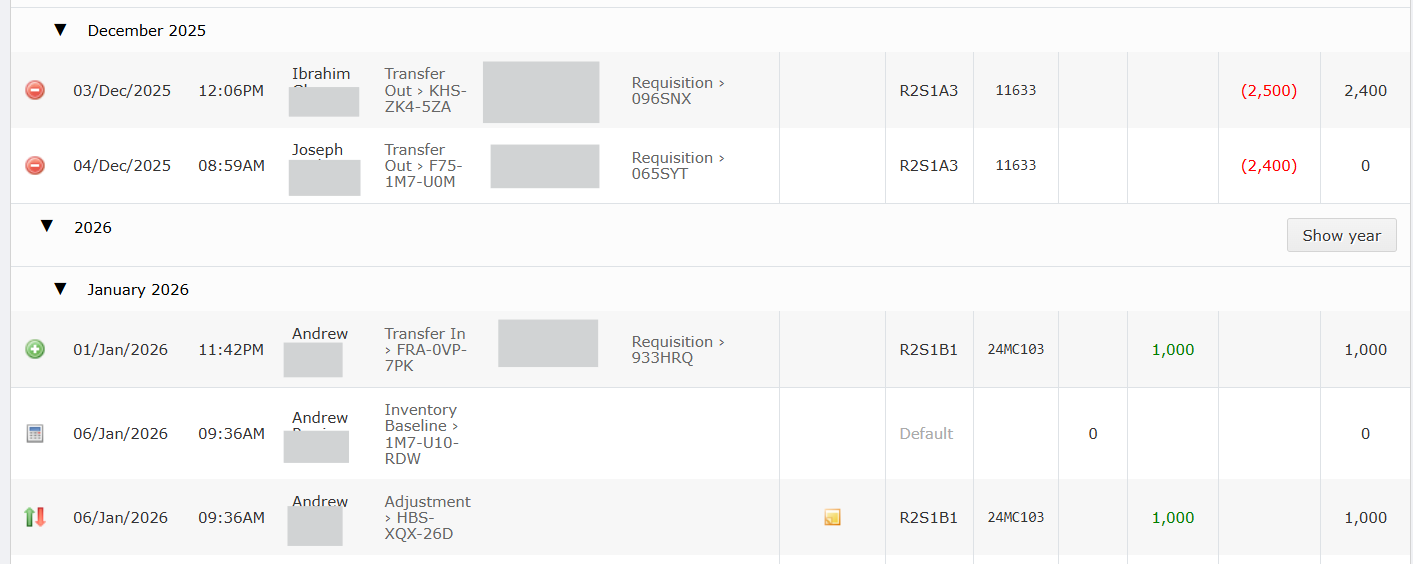
You can see that now there is a new transaction on Jan 1 that accounts for the additional 1,000. But you also see that when Andrew counted on Jan 6, OB thought that there were zero in stock. OB records it this way because it allows Andrew to correct the record, AND:
- Adding the backdated receipt does not increase the overall inventory to 2,000. It correctly shows 1,000 in stock
- The record that there was a mistake still exists. We can see that even though now the receipt is entered properly, at the time of the count there was a discrepancy. So we can track the accuracy issues, even if they were fixed after the fact.
If we are confused about what happened here, we can click through to the transaction data of that Jan 1 receipt:
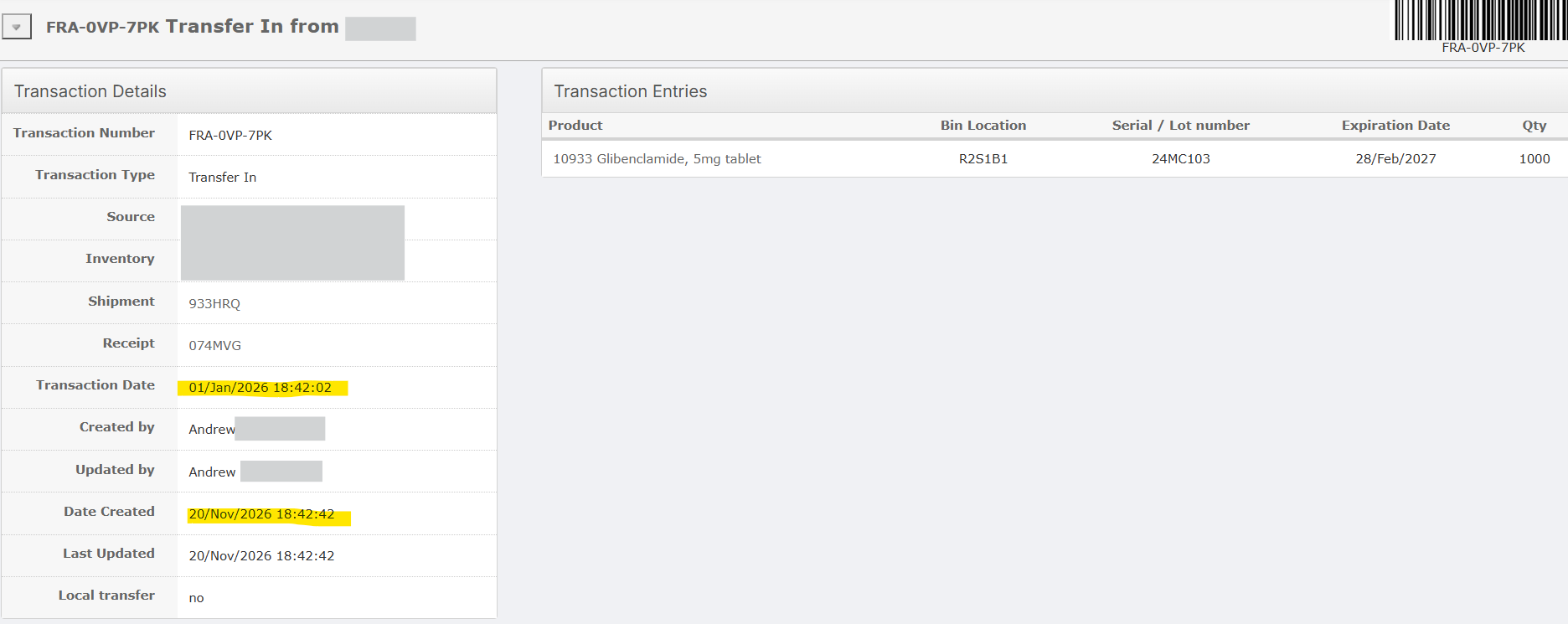
You can see that the transaction date is Jan 1, but the transaction was created Nov 20 (for the example given above, the created date should say Jan 7 when Andrew did the backdated receipt. It instead shows when the example data was created.)
Now how does this look in the transaction report?

That -1,000 shows up in the differences column!
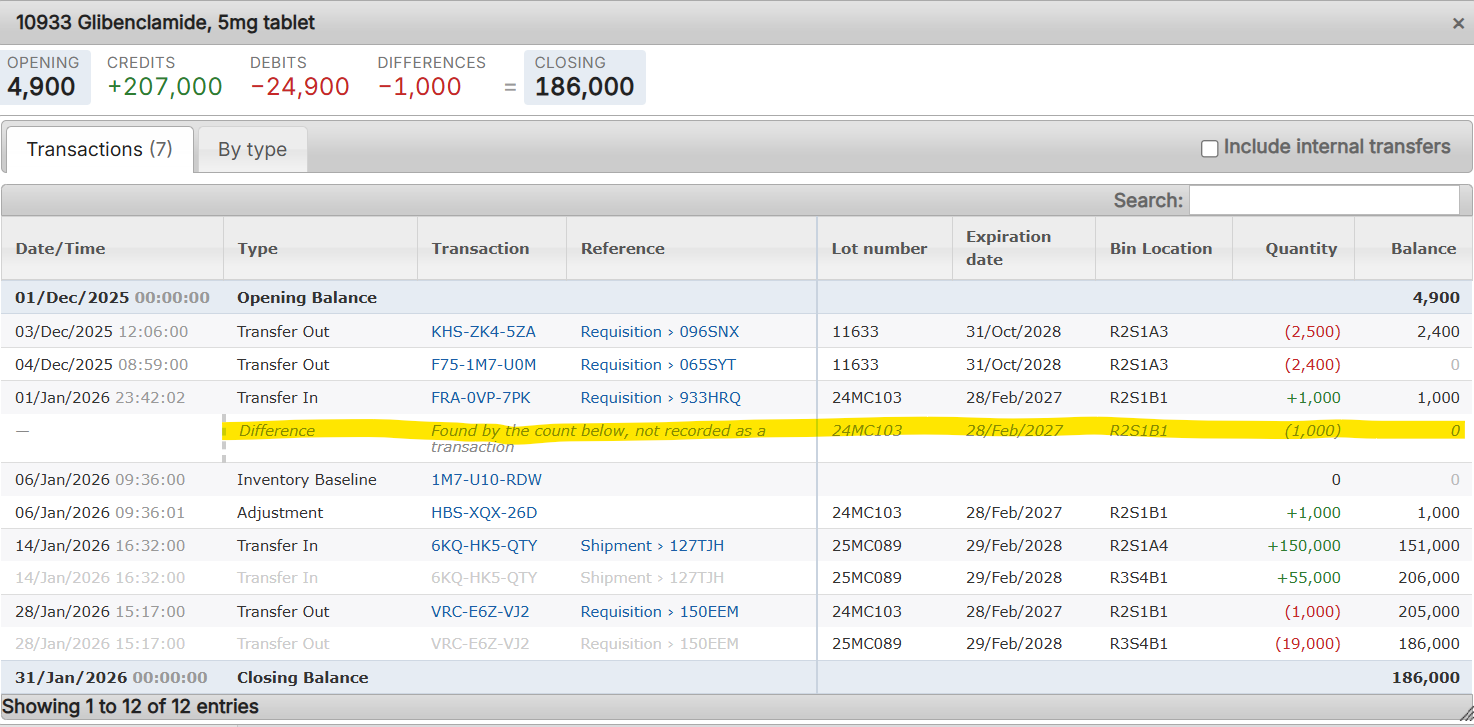
In the details modal for the product, you can see that the difference is associated somehow with the inventory baseline that happened on Jan 6. There was suppose to be 1,000 and all the sudden there was 0 when the inventory was counted. Why? Well, now that we have been through the scenario above, we know that there was 0 in OpenBoxes on Jan 6 when the count happened, but after the count happened, Andrew inserted a missing receipt for 1,000. So there is a -1,000 between Jan 1 and Jan 6 that appears to be unaccounted for, but by looking at the stock history we can clearly see why it happened. And in this case, there is no issue! The current stock is accurate, and Andrew intentionally inserted the backdated transaction as part of his reconciliation process. So "differences" indicate that there was an inventory issue at some time during the period (because the stock was not accurate at point of count), but they don't necessarily indicate a current or unresolved issue.
Now what about in the CSV?
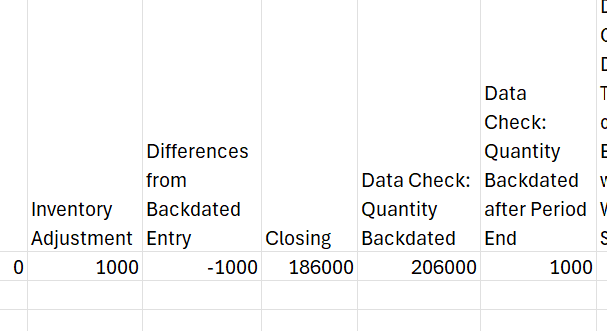
You can see in the CSV file that there was an inventory adjustment of +1,000, and a difference from backdated entry of -1,000. That's a good indication that the backdated entry is directly related to the inventory adjustment. You can also see that there was a large quantity entered through backdated transactions, but most of that quantity did not create a "difference" because the transactions were not backdated across an inventory baseline. And finally you can see that a backdated entry of 1,000 was entered after the period of the report. This could be the backdated entry that resulted in the difference, but we don't know that because there are other backdated transactions. We need to look at the details or stock history to know the transaction that caused it.
Review: what types of scenarios can cause an entry in the difference column? Any scenario where a user adds or updates a transaction after an inventory baseline that occurred before an inventory baseline.
When are differences bad? When do they indicate a problem with my inventory? The kind of backdated transaction described above does not cause in inventory issue when it is done intentionally and recorded on the correct date. However, the overall inventory can become inaccurate if EITHER the inventory count OR the backdated transaction are recorded on the wrong date (as in not the date they actually happened).
Examples of different backdated transaction scenarios:
These scenarios will create a difference in the transaction report, but will not create a problem with your current inventory
- User receives a shipment after an inventory baseline has happened on the product, but enters the receipt date as before the date of the inventory baseline (the example above)
- User does an inventory count and realizes that there is a shipment that went out that was not recorded. After completing the count, they go back and enter the shipment, backdating it to the day it actually went out, before the count.
- User does an inventory count and realizes that there is a shipment that went out that was not correct. After completing the count, they roll the shipment back and correct the issue (or they have a superuser edit the shipment transaction). They re-ship the shipment on the same date and time it initially went out
This scenarios will create a difference in the transaction report and will also mess up your current inventory
- User ships a shipment, then does an inventory count, creating a baseline. A few days after the count, they realize they made a mistake and roll the shipment back. When they re-ship the shipment, they forget what date it actually went out and backdate it to before the inventory count
- User starts a receipt in OB, but it takes several days for the stock to be fully verified and received. In the meantime, someone counts the stock. The user finalizes receipt and sets the receipt date to the day they started the receipt, even though they didn't complete it and enter the product into inventory until a few days later.
- User uses the record stock function to record a stock count that happened a few days ago but wasn't yet entered into OB. They record the count for the date the stock was actually counted, but they mess up the time. The count happened in the afternoon, after a receipt took place. They recorded the count in the morning, before the receipt.
Remember: Always record transactions at the exact date and time they physically happened! Back-dating does not have to cause problems with your inventory, but it will if the system does not match what you did physically.